13. Third party softphones

Below you will find instructions how to configure popular free SIP softphones with VoIPstudio service. Before you begin you will need to obtain your SIP account details:
- Click gear icon
 in top right part of the
 My Accountpanel - Select
Profilefrom the menu.
Use SIP username, password and domain (3,4,5 in the Figure 13.1 above) to configure SIP softphone or a hardware device.
Ekiga
In order to set up Ekiga with VoIPstudio download installation package from http://ekiga.org/ website (or use your distribution packages manager), obtain your VoIPstudio SIP account details as shown in Figure 13.1 above and follow instruction below:

- Go to
EditandAccounts. - Select
Add a SIP Accountfrom the menu. - Enter your SIP domain into field
(3). - Enter your SIP username into fields
(4). - Enter your SIP password into field
(5). - Click
OKbutton.
After a short while Ekiga will connect to our servers and you will be able to start making and receiving calls.
Android Native Softphone

- Go to Settings and scroll down and select Call.
- Scroll down and select Phone Account Settings.
Depending on the current version of Android you have how to set this up to check your version go to settings -> General -> About.
The above 2 Images were from Version 5.0 on the left and Version 5.1.1 on the Right.
- Select Sip Accounts to add account details.
- Select 4 to select outgoing call preference.
- Select to accept inbound calls.
- Enter your SIP username into field
(6). - Enter your SIP password into field
(7). - Enter your SIP domain into field
(8). - Click save to register account.
Telephone
In order to set up Telephone with VoIPstudio download installation package from http://www.tlphn.com/ website (or MacApp Store), obtain your VoIPstudio SIP account details as shown in Figure 13.1 above and follow instruction below:

- Start Telephone and enter your SIP domain into filed
(1). - Enter your SIP username into field
(2). - Enter your SIP password into field
(3). - Click
Donebutton
After a short while Telephone will connect to our servers and you will be able to start making and receiving calls.
Twinkle
In order to set up Twinkle with VoIPstudio download installation package from http://www.twinklephone.com/ website (or use your distribution packages manager), obtain your VoIPstudio SIP account details as shown in Figure 13.1 above and follow instruction below:

- Go to
FileandChange user... - Click
Wizardbutton. - Enter VoIPstudio as your account name and click
OK. - Enter your SIP username into fields
(4). - Enter your SIP domain into field
(5). - Enter your SIP password into filed
(6). - Click
OKbutton.
After a short while Twinkle will connect to our servers and you will be able to start making and receiving calls.
X-Lite 3
In order to set up X-Lite 3 with VoIPstudio download installation package from http://www.counterpath.com website, obtain your VoIPstudio SIP account details as shown in Figure 13.1 above and follow instruction below:

- Right click on X-Lite screen.
- Select
SIP Account Settings...option(2)from context menu. - Click
Add...button(3)in SIP Accounts window. - Enter your name into field
(4). - Enter your SIP Username from
SIP Infopanel - Enter your SIP Password into field
(6). - Enter your SIP Username into field
(7). - Enter SIP domain into field
(8). - Switch to
Presencetab(9). - Select
Presence Agentfrom drop down list(10). - Click
OKbutton.
After a short while X-Lite will connect to our servers and you will be able to start making and receiving calls.
X-Lite 4
In order to set up X-Lite 4 with VoIPstudio download installation package from http://www.counterpath.com website, obtain your VoIPstudio SIP account details as shown in Figure 13.1 above and follow instruction below:

- Click
Account Settingsin main X-Lite window. - Enter your SIP username into field
(2). - Enter your SIP domain into field
(3). - Enter your SIP password into field
(4). - Click
OKbutton.
After a short while X-Lite will connect to our servers and you will be able to start making and receiving calls.
3CX Phone
In order to set up 3CX Phone with VoIPstudio download installation package from http://www.3cx.com/3CXPhone/ website, obtain your VoIPstudio SIP account details as shown in Figure 13.1 above and follow instruction below:

- Right click the main window and select
Accountsfrom the menu. - Click
Newbutton inAccountswindow. - Enter your SIP username into fields
(3). - Enter your SIP password into filed
(4). - Select
I am out of the office - external IPand enter your SIP domain into filed(5). - Click
OKbuttons.
After a short while 3CX Phone will connect to our servers and you will be able to start making and receiving calls.
ZoIPer
In order to set up ZoIPer with VoIPstudio download installation package from http://www.zoiper.com/ website, obtain your VoIPstudio SIP account details as shown in Figure 13.1 above and follow instruction below:

- Select Settings.
- Select Create New Account.
- Select SIP if not selected by Default.
- Enter your SIP username into fields
(4). - Enter your SIP password into filed
(5). - Enter your SIP domain into filed
(6). - Zoiper will automatically fill in your این آدرس ایمیل توسط spambots حفاظت می شود. برای دیدن شما نیاز به جاوا اسکریپت دارید click next and your account will be completed automatically.
After a short while ZoIPer will connect to our servers and you will be able to start making and receiving calls.
ZoIPer iPhone
In order to set up ZoIPer with VoIPstudio download installation package from https://itunes.apple.com/gb/app/zoiper-sip-softphone-for-voip/id438949960?mt=8 website, obtain your VoIPstudio SIP account details as shown in Figure 13.1 above and follow instruction below:

1. Select Settings.
2. Select Accounts.
3. Tap the Plus Sign to start setup.

4. Select Yes.
5. Choose Select a Provider.
6. Scroll down and Select VoIP Studio.

7. Fill SIP Username into field (7).
8. Fill SIP Password into field(8).
9. Enter Identifier of Choice into field (9).
10. Tap Register to register with our servers.
11. After Registration is complete enter any number and tap the call button.
After a short while ZoIPer will connect to our servers and you will be able to start making and receiving calls.
ZoIPer Android
In order to set up Bria Android with VoIPstudio, download installation package from https://play.google.com/store/apps/details?id=com.zoiper.android.app&hl=en_GB and follow instruction below:
Automatic Configuration

1. Select Config. 2. Select Accounts. 3. Tap Add Account.

4. Select Yes. 5. Search for VoIP Studio. 6. Enter 6 Digit SIP Username. 7. Enter SIP Password. 8. Save.
Account will then register with our server dial #123 to make a test call.
Manual Configuration
1. Select Config. 2. Select Accounts. 3. Tap Add Account.

4. Select SIP. 5. Enter Prefered name for Account. 6. Imput SIP Domain. 7. Enter 6 digit SIP Username. 8. Enter SIP Password. 9. Save Account. 10. Account will register with our server.
Dial #123 to make a test call.
Bria Android
In order to set up Bria Android with VoIPstudio, download installation package from https://play.google.com/store/apps/details?id=com.bria.voip and follow instruction below:
Auto Configuration
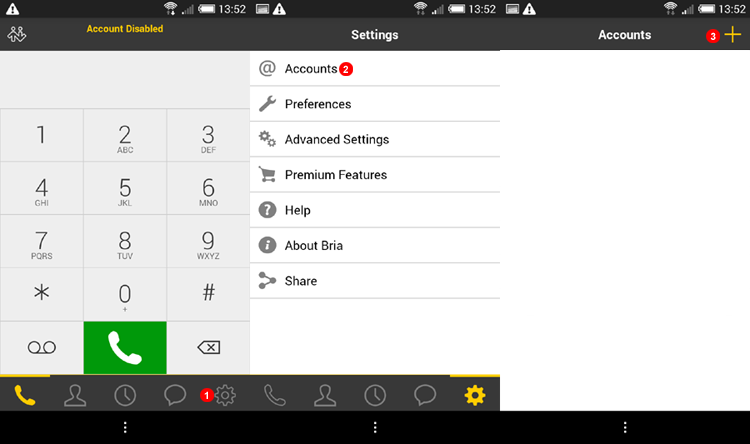
- Select Settings
- Select Accounts
- Add account using "+" sign

- Scroll down to find VoIP Studio Select either EU or AMN.
- Input Any Account name.
- Input Name that will display on account main screen.
- Input SIP Username.
- Input SIP Password.
- Press the Back Button and then go to dialpad and start calling.
Manual Configuration

- Select Settings
- Select Accounts
- Add account using "+" sign

- Scroll down to find VoIP Studio Select either EU or AMN.
- Input Any Account name.
- Input Name that will display on account main screen.
- Input SIP Username.
- Input SIP Password.
- Input SIP Domain (Either eu.sip.ssl7.net or amn.sip.ssl7.net)
- Input Voicemail number #445
- Press the Back Button and then go to dialpad and start calling.
Bria iPhone
In order to set up Bria iPhone with VoIPstudio, download installation package from http://itunes.apple.com/app/bria-iphone-edition/id373968636 and follow instruction below:
Auto Configuration

- Select
Accountsmenu. - Tap plus button to add account.
- Scoll Down and Select either VoIP Studio EU or VoIP Studio AMN.(Check SIP Info under edit user check if domain is eu.sip.ssl7.net or amn.sip.ssl7.net)
- Enter Display Name.(This can be identifier of choice)
- Enter your SIP Username into fields
(5). - Enter your SIP Password into field
(6). - Icon will Flash Green/Red while registering and stay green when registered successfully.
- Enter number you wish to call and tap
Callbutton(8).
Manual Configuration

- Select
Accountsmenu. - Tap plus button to add account.
- Select
SIP - Making Callsfrom the menu. - Enter VoIPstudio as
Account Name. - Enter Display Name.(This can be identifier of choice)
- Enter your SIP Username into fields
(6). - Enter your SIP Password into field
(7). - Enter SIP domain into field
(8). - Change Selector to Green.
- Enter 445 into field
(10). - Tap
Registerbutton. - Enter number you wish to call and tap
Callbutton(12).
Bria iPad
In order to set up Bria iPad with VoIPstudio, download installation package from http://itunes.apple.com/app/bria-ipad-edition-mobile-voip/id440744818 and follow instruction below:

- Select
Accountsmenu. - Tap plus button to add account.
- Select
SIP - Making Callsfrom the menu. - Enter VoIPstudio as
Account Name. - Enter your SIP Username into fields
(5). - Enter your SIP Password into field
(6). - Enter SIP domain into field
(7). - Enter 445 into field
(8). - Tap
Registerbutton. - Tap
Dialpadicon in top right corner. - Enter the number you wish to call and tap
Callbutton.
Grandstream Wave iPhone
In order to set up Grandstream Wave iPhone with VoIPstudio, download installation package from https://itunes.apple.com/gb/app/grandstream-wave/id1029274043?mt=8 and follow instructions below:

- So Start select settings.
- Select Account Settings.
- Select
+to add new account. - Select SIP account.
- Enter Any Descriptive Title.
- Enter Domain Provided on VoIPstudio control Panel.
- Enter 6 Digit SIP User name provided on VoIPstudio control Panel.
- Enter Password Generated on VoIPstudio control Panel.
- Enter
#445to easily access voice mail. - Select
✓to complete configuration and register the account. - Go Back to settings and select the newly created account then remove
Use # as Dial Key